
Here is a link to the original thread.
LINK Virtual cruise Lyon to Avignon and Arles
Gransnet forums
Chat
Virtual events
(199 Posts)The Virtual cruise Lyon to Avignon and Arles is continuing yet seems likely to be completed in a few days.
What appeared to work is that I suggest a scenario then others run it.
So what next?
Bearing in mind the typical ages of readers here and thus the eras in which we grew up, and that a journey from one place to another gives a structure so that the thread progresses and moves on over a number of days, I am wondering if readers like the following idea for a scenario.
A present day rock 'n' roll history tribute band is touring from Chicago to Los Angeles along Route 66, visiting the historic parts of the old Route 66 wherever possible.
A new, follow on, thread is already underway.
Excellent.
LINK > The Côte D’Azur Caper
Do I detect a bit of meanness here? Am I missing something from when I wasn’t posting? I just seem to be behind the curve and it feels a bit off somehow ...
StarDreamer
Urmstongran
I don’t think a link will be posted StarDreamer. Popular threads never need one. Someone just opens up a new one ... and off we go again!
Please note that in the Virtual cruise Lyon to Avignon and Arles that I made the original post very compact so that when it would be repeated at the top of every page it would be unobtrusive and not distort the sequence of the thread.
Then I introduced the thread in the first post on the first page.
Invaluable advice I am sure StarDreamer.
Urmstongran
I don’t think a link will be posted StarDreamer. Popular threads never need one. Someone just opens up a new one ... and off we go again!
Please note that in the Virtual cruise Lyon to Avignon and Arles that I made the original post very compact so that when it would be repeated at the top of every page it would be unobtrusive and not distort the sequence of the thread.
Then I introduced the thread in the first post on the first page.
Wont be by me ... I’m a bear of very little brain!
I’m happy just to hitch a ride on someone else’s imaginative tour.
?
Urmstongran
I think it’s most likely StarDreamer. I’ve only joined in these last 2 days. It’s witty and fun. You could always come aboard a new cruise if it happens? I’ll save you a deckchair. I’ll be up on the promenade deck.
?
Thank you.
There have been suggestions of a Rhine Cruise and then a journey on The Orient Express.
In the imagination a replica of The Orient Express is already being constructed in France.
Other suggestions are welcome.
I don’t think a link will be posted StarDreamer. Popular threads never need one. Someone just opens up a new one ... and off we go again!
So alas no link to a new thread in the thread.
Hey ho.
I think it’s most likely StarDreamer. I’ve only joined in these last 2 days. It’s witty and fun. You could always come aboard a new cruise if it happens? I’ll save you a deckchair. I’ll be up on the promenade deck.
?
Alas no, I am waiting to observe the 1000th post in the thread.
You’ve clearly never witnessed the many seamless transitions of Soop’s Kitchen - GN members are past masters at this.
Two posts left for a graceful ending.
Well done ixion
TAAT?
Three posts left!
Down to only four.
Hey look please, the Virtual cruise Lyon to Avignon and Arles has, at the time of writing this post, only six more posts possible.
www.gransnet.com/forums/chat/1311451-Virtual-cruise-Lyon-to-Avignon-and-Arles?pg=40
How will the thread end?
Will there be a link to a new thread?
MerylStreep
So, StarDreamer Exactly what my grandchildren done as toddlers without all the tech hoo ha ?
Well, maybe.
But many of us grew up in an era before such things were available to us as children and we did not have television and we listened to the wireless as it was then called.
Then we had television, one channel, black and white.
And so on.
Just because some things now available are used by children, does not mean that people here cannot enjoy using them.
Children drink pure orange juice. That is no reason for me not to enjoy drinking it.
You refer to "tech hoo ha".
Yet if one is at home and would like to learn, detailed guidance of how to get started can be useful.
If you already know how to do what I have described, then you are fortunate. Yet please consider that what I have posted, both here and in the new thread, may be helpful to some people, and that some people might like not to post but may enjoy producing some art privately.
So, yes, maybe a pile on will start here, maybe the new thread will be disrupted by some people just because they are able to do so.
C'est la vie, hey ho.
Lucca
Vivaldi “ volontà di vivere “
…
Which most of us are losing
There is now a thread specifically for using the Paint program to produce art.
www.gransnet.com/forums/culture_arts/1311809-Virtual-art-group-Producing-art-using-the-Paint-program
So, StarDreamer Exactly what my grandchildren done as toddlers without all the tech hoo ha ?
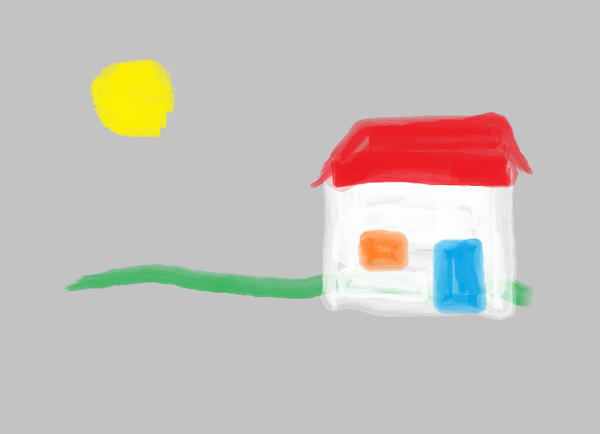
For this picture, having started off with File New and File Properties, before using the watercolour brush I used Home and then I clicked on the paint bucket that is in the middle of the upper row of logos in the group of six logos that is to the left of where one chooses a brush.
I then moved the pointer over to the right and I clicked on the Grey 25% colour square, which is in the lower row, second from the left, next to the White colour square.
I then moved the pointer onto the canvas, whereupon the pointer turned into a paint bucket with paint tipping out of it.
I then clicked on the canvas, and the whole canvas turned grey.
So then I chose the watercolour brush and produced the picture.

And just in case anyone is interested in using the Paint program, having done File New and File Properties as mentioned in my previous post, the next step is to click on Home on the menu bar, then click on the word Brushes and a drop down menu should appear. To get started, choosing the one that is lowest down on the drop down menu is good, choosing it by clicking on it. This is the watercolour brush.
A black filled circle should appear on the white canvas, this can be moved around, without making a mark, using the mouse or trackpad.
Unless you want to use black paint, move the filled circle to the right and up, and when the filled circle goes off the canvas, it turns into the pointer,
Move the pointer onto the colour palette and click on a colour of your choice, and then move the pointer back onto the canvas, where a filled circle filled with that colour should be being displayed, yet not marking the canvas.
Remembering that the canvas is 5.25 inches tall, regardless of how big it is actually shown on the screen, move the filled circle over to the left, in a bit from the edge and around one and a half to two inches up from the lower edge of the picture, that is, about a third of the way up the canvas from its lower edge.
Click on the mouse and hold down and then drag across the screen to the right, then release the mouse button.
If you don't like the result, then using CTRL Z on the keyboard will delete it and you can try again if you wish.
The result I got is shown. I have been able to conserve what I produced by using File Save and I saved as a png file. The png means Portable Network Graphics.
Then one can gradually build up a picture by choosing different colours and drawing different lines.
One does not necessarily need to start off with a white canvas, it is possible to change the colour of the canvas before starting to paint a picture.
Sorry SD, my ‘no thanks’ applied to me for the reasons I gave.
Join the conversation
Registering is free, easy, and means you can join the discussion, watch threads and lots more.
Register now »Already registered? Log in with:
Gransnet »